
Help Brilion Help Brilion

  • Home
  • Magazine
  • Help Center
Home / Getting started / Upload customer and crew data

Upload customer and crew data

3 views Less than a minute 0
  • Please navigate to Settings > General > Upload Data.
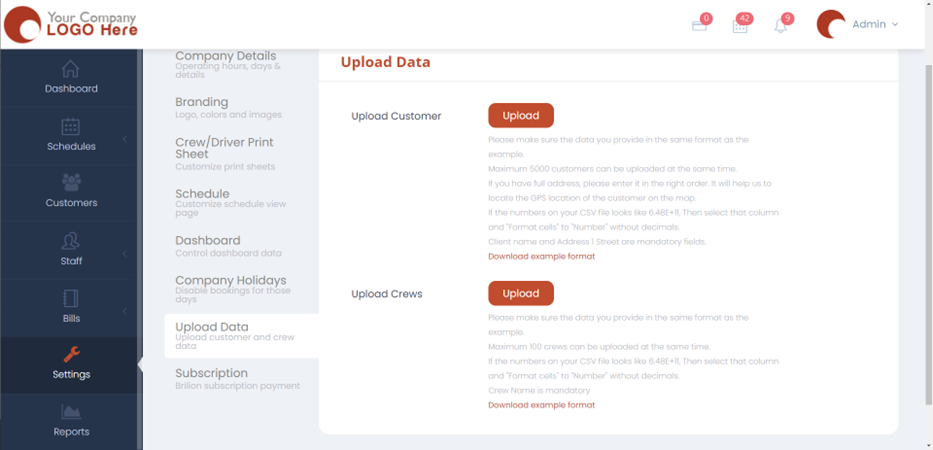
  • Next, you need to download the example format by clicking on “Download Example format”.
  • An excel file with the prefilled format will be saved to your computer. Make sure you type in the required data under the labelled columns. For e.g., the client or the customer’s name needs to be exactly under the “Client name”, their address needs to be exactly under the column where it says “Primary Address” and so on. Fill in for both the customer and the crew data.
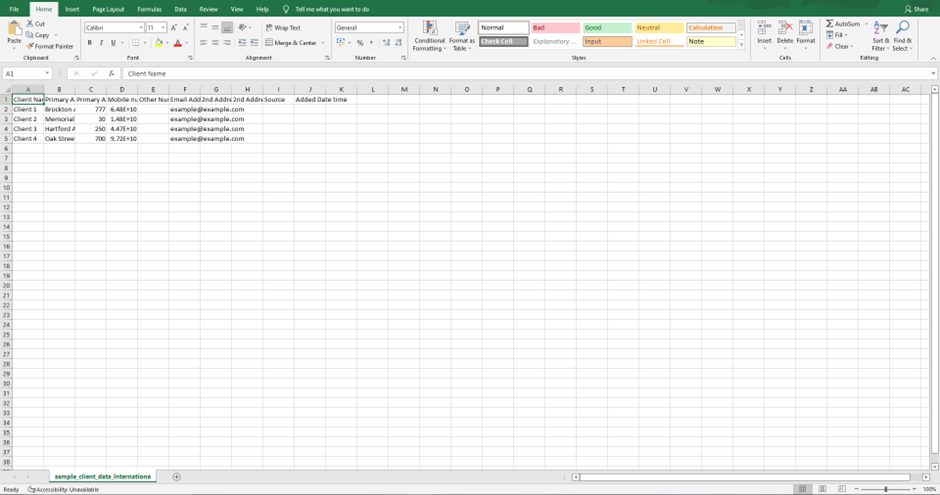
  • Once done, click on “Upload” for both the customers and crews and upload the files. Once, the files are uploaded, the crew and the customer data will be available under “Schedules” and “Customers”.
 
Getting started

About info

View all posts by info →

Related Articles

  • Setting time slots for online booking
  • Marking a customer active/inactive
  • Editing customer details for existing customers
  • Let Crews set their availability for bookings through the crew app

Categories

  • 14Communications
  • 8Crew App
  • 2Customer App
  • 25Getting started
  • 5Integrations
  • 9Invoices and Payments
  • 1Marketing
  • 13Online Booking
  • 29Scheduling

Most Viewed

  • Add multiple jobs for a single customer on the same day 9
  • Deleting or adjusting an invoice 7
  • Adding a note that appears on every job 7
  • Allocating Driver Zones 5
  • Adding a crew member and generating password for the crew app 4

Most Liked

© 2024 , Brilion Technologies | All Rights Reserved | Privacy Policy | Terms & Conditions