
- The settings relating to communication would be found under Settings > Communication. There are various ways to communicate with your clients, crews, and other admins. You can reach them either through email or an SMS.
- Here we will discuss Email Configuration. Under Email Configuration, you will find a bunch of buttons to turn either on or off based on your preference. The sentences indicate the functionality of the buttons.
- Now, if you want that your customers receive an email every time they make a booking with you, all you need to do is turn on the button for “Booking email after admin makes a booking”. This will make sure that your customers are notified about their booking every time an admin(s) makes a booking.
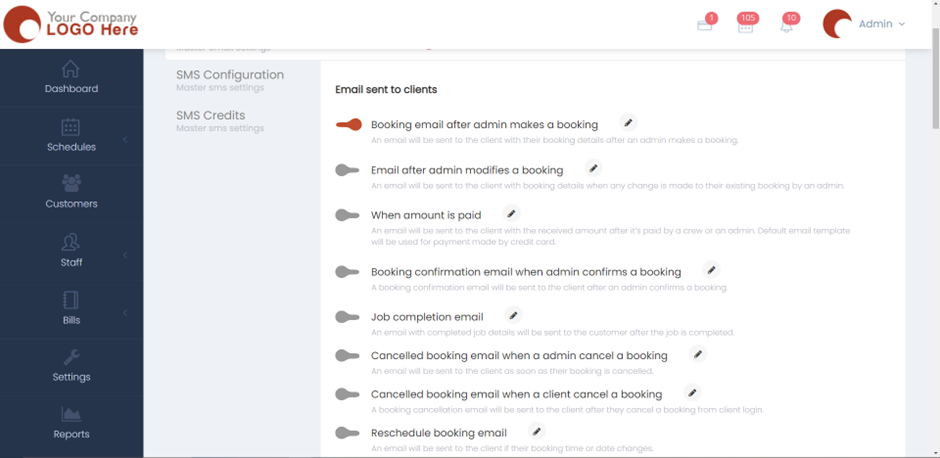
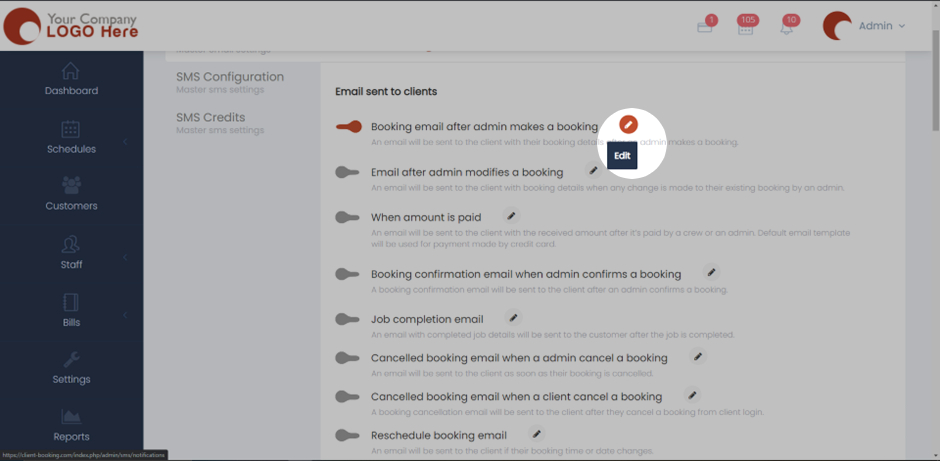
- There will be a pencil shaped icon next to every sentence. This will let you edit the email template and text for that particular function.
- Scroll down and you’ll find the email configuration for the crews and other admins. Turn them on or off based on your preference.
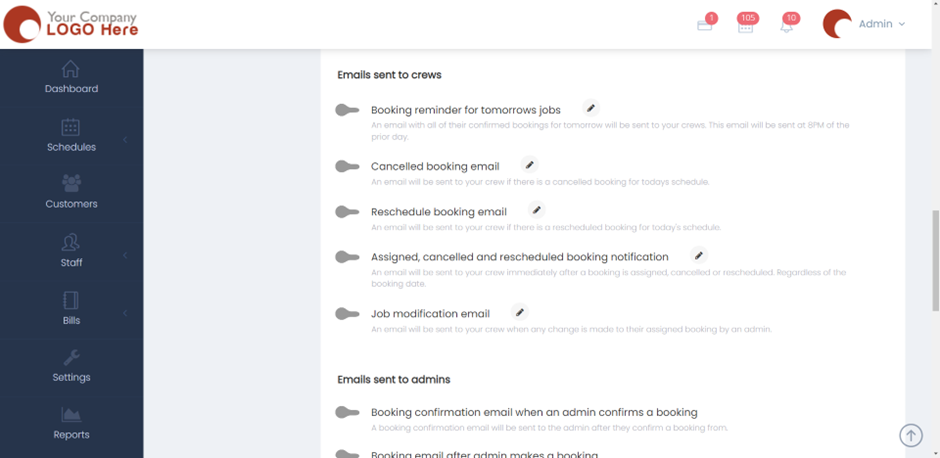
- Once done, click on Save and now the Email configuration settings will be applied for all your customers, crews, and other admins. Please check SMS configuration if you want the customer to be notified through an SMS.
