Help Brilion Help Brilion

  • Home
  • Magazine
  • Help Center
Home / Communications / SMS Configuration

SMS Configuration

3 views Less than a minute 0
NOTE: You’ll require SMS Credits to use this feature.
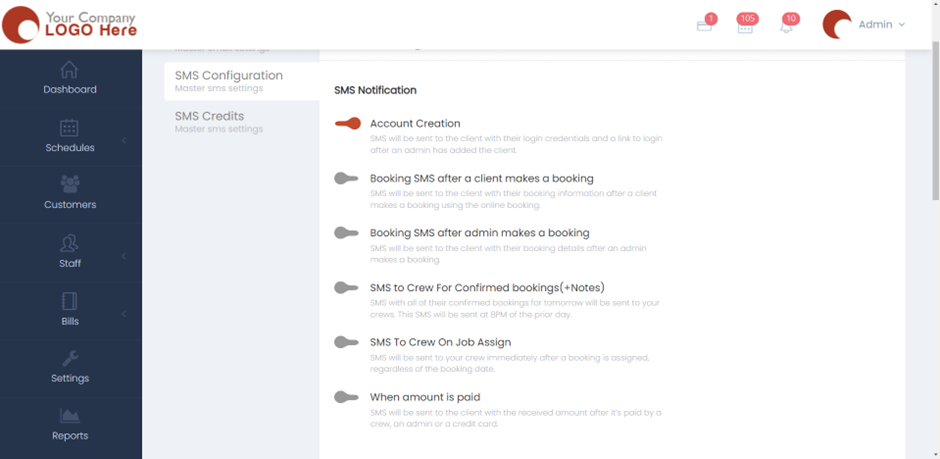
  • Please head over to Settings > Communication > SMS Configuration.
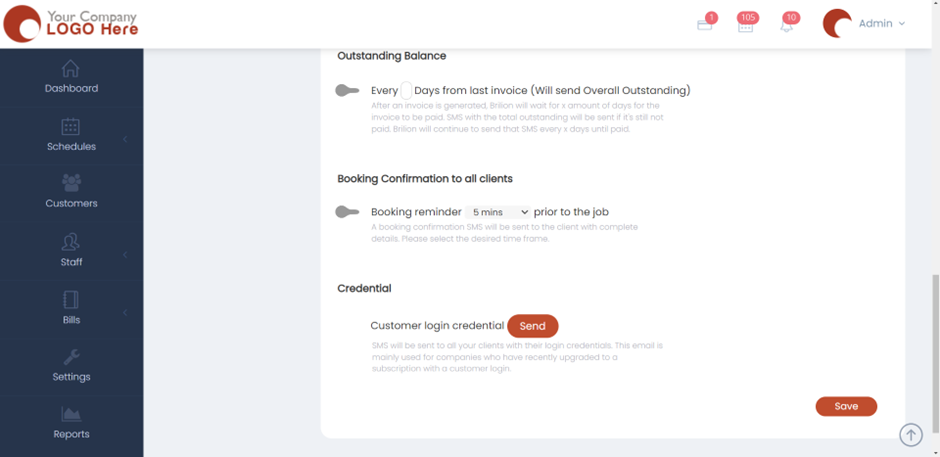
  • Under SMS Configuration, you’ll find a bunch of buttons to turn either on or off based on your preference. The sentences indicate the functionality of the buttons.
  • If you want an SMS will be sent to the client with their login credentials and a link to log in after an admin has added the client, then you’ll need to turn on the button for the first sentence.
  • Similarly, you will need to turn these buttons on or off for the Re-schedule notification, Outstanding balance, and Booking confirmation to all clients. We also have the Credential option where an SMS will be sent to all your clients with their login credentials. This email is mainly used for companies who have recently upgraded to a subscription with customer login.
  • Hit Save and now the SMS settings will be applied.

 
Communications

About info

View all posts by info →

Related Articles

  • Marking a customer active/inactive
  • Enabling today and future days booking notifications for your crews
  • Deleting a receipt in case payment is not made/ Recovering an invoice
  • Viewing and sending the receipt for a customer

Categories

  • 14Communications
  • 8Crew App
  • 2Customer App
  • 25Getting started
  • 5Integrations
  • 9Invoices and Payments
  • 1Marketing
  • 13Online Booking
  • 29Scheduling

Most Viewed

  • Add multiple jobs for a single customer on the same day 9
  • Adding a note that appears on every job 7
  • Deleting or adjusting an invoice 6
  • Allocating Driver Zones 5
  • Adding a crew member and generating password for the crew app 4

Most Liked

© 2024 , Brilion Technologies | All Rights Reserved | Privacy Policy | Terms & Conditions