
Help Brilion Help Brilion

  • Home
  • Magazine
  • Help Center
Home / Scheduling / Enabling or disabling a specific service

Enabling or disabling a specific service

3 views Less than a minute 0
  • To enable or disable a service, please navigate to Settings > Services.
  • You will see your services listed out. To disable a service, click on the red box next to the service and it’ll disable it.
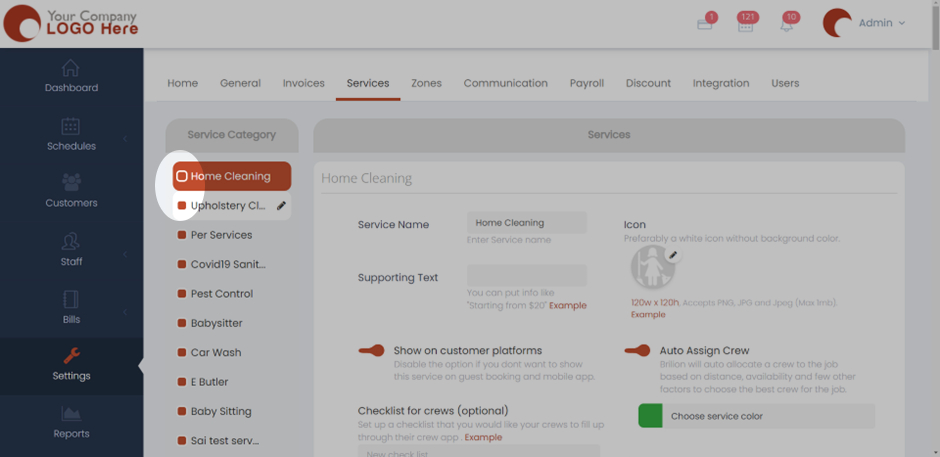
  • Here, the Upholstery Cleaning service will be disabled once we click on the box right next to it.
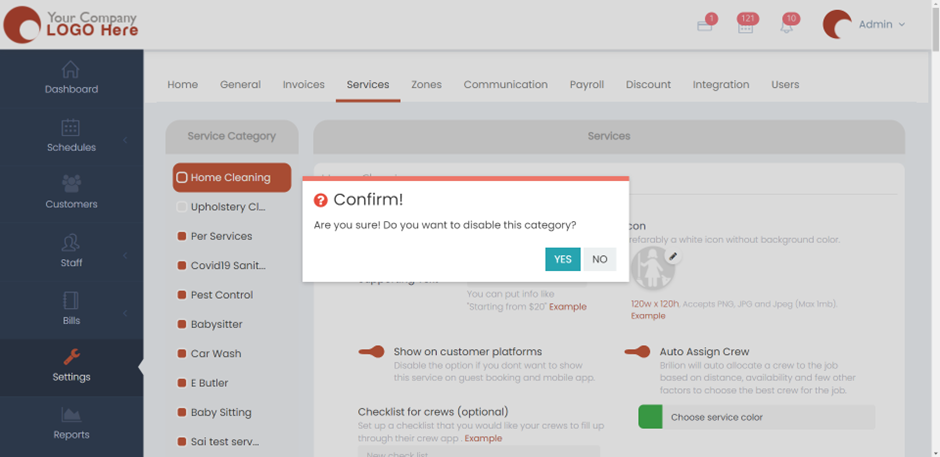
  • It will ask you to confirm whether you want to disable the category. Click on Yes and then it will be disabled.
 
Scheduling

About info

View all posts by info →

Related Articles

  • Setting time slots for online booking
  • Marking a customer active/inactive
  • Enabling today and future days booking notifications for your crews
  • Deleting a receipt in case payment is not made/ Recovering an invoice

Categories

  • 14Communications
  • 8Crew App
  • 2Customer App
  • 25Getting started
  • 5Integrations
  • 9Invoices and Payments
  • 1Marketing
  • 13Online Booking
  • 29Scheduling

Most Viewed

  • Add multiple jobs for a single customer on the same day 9
  • Deleting or adjusting an invoice 7
  • Adding a note that appears on every job 7
  • Allocating Driver Zones 5
  • Adding a crew member and generating password for the crew app 4

Most Liked

© 2024 , Brilion Technologies | All Rights Reserved | Privacy Policy | Terms & Conditions