
Help Brilion Help Brilion

  • Home
  • Magazine
  • Help Center
Home / Communications, Crew App, Scheduling / Allowing crews to edit property details

Allowing crews to edit property details

3 views Less than a minute 0
  • To allow crews to edit the property details, please head over to Settings > Integration > Crew App.
  • Scroll down to the bottom and you will find the option to switch between whether or not to allow crews to edit the property details. This will allow the crews to edit property details like bedroom, bathroom, or other fields that the admin has defined.
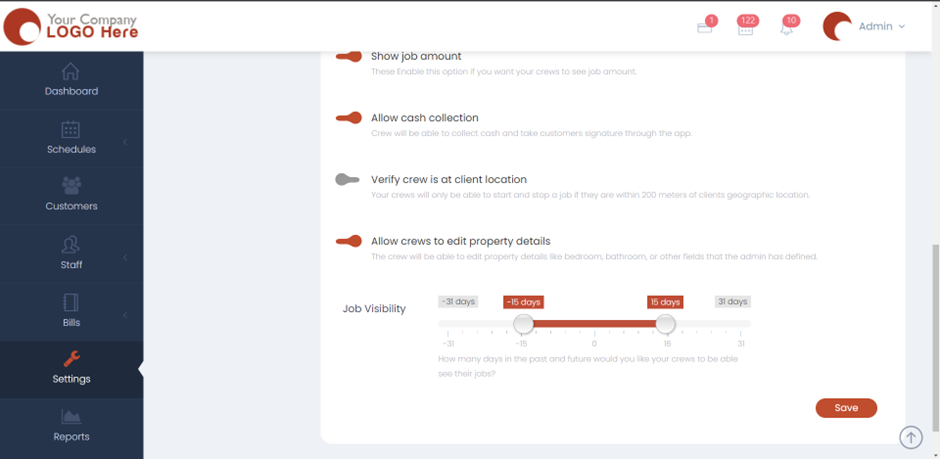
  • Hit Save and now the crews will be able to edit the customer property details.
 
CommunicationsCrew AppScheduling

About info

View all posts by info →

Related Articles

  • Setting time slots for online booking
  • Marking a customer active/inactive
  • Enabling today and future days booking notifications for your crews
  • Deleting a receipt in case payment is not made/ Recovering an invoice

Categories

  • 14Communications
  • 8Crew App
  • 2Customer App
  • 25Getting started
  • 5Integrations
  • 9Invoices and Payments
  • 1Marketing
  • 13Online Booking
  • 29Scheduling

Most Viewed

  • Add multiple jobs for a single customer on the same day 9
  • Adding a note that appears on every job 7
  • Deleting or adjusting an invoice 6
  • Allocating Driver Zones 5
  • Adding a crew member and generating password for the crew app 4

Most Liked

© 2024 , Brilion Technologies | All Rights Reserved | Privacy Policy | Terms & Conditions