
Help Brilion Help Brilion

  • Home
  • Magazine
  • Help Center
Home / Getting started / Applying cancellation charges for your customers

Applying cancellation charges for your customers

3 views Less than a minute 0
  • To apply cancellation charges, please head over to Settings > Invoices > Cancellation charges.
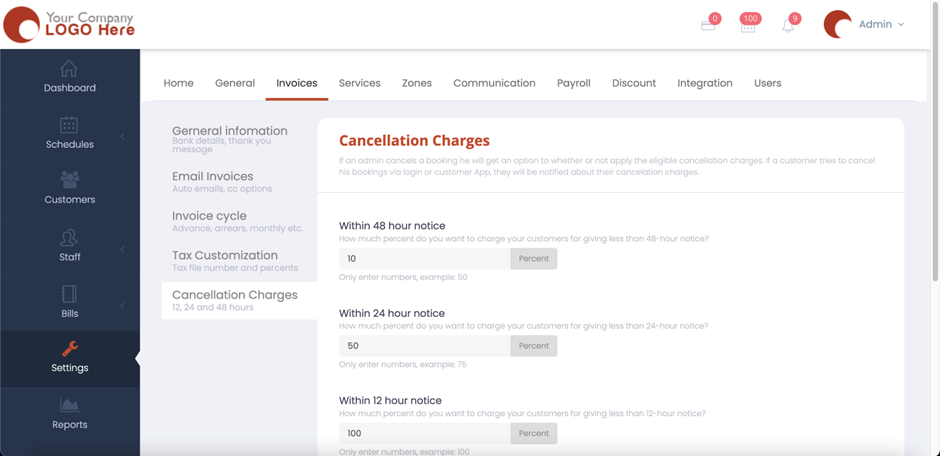
  • If an admin cancels a booking, he will get an option to whether or not to apply the eligible cancellation charges. If a customer tries to cancel his bookings via login or customer app, they’ll be notified about their cancelation charges.
  • You will be set the percentage of the booking amount that you’d want to be deducted once your customer cancels a booking. These could be within a 48, 28, or 12-hour notice according to how you’ve set them. You also have the option of “Completed Jobs” which is for the scenario where the system has completed the job but the job was cancelled.
  • You can also enable to show the service name instead of cancellation charges by enabling it.

  • Once you’ve set up your cancellation charges hit “Save” and now the cancellation charges would be applied to the customers whenever they cancel a booking.
 
Getting started

About info

View all posts by info →

Related Articles

  • Setting time slots for online booking
  • Marking a customer active/inactive
  • Editing customer details for existing customers
  • Let Crews set their availability for bookings through the crew app

Categories

  • 14Communications
  • 8Crew App
  • 2Customer App
  • 25Getting started
  • 5Integrations
  • 9Invoices and Payments
  • 1Marketing
  • 13Online Booking
  • 29Scheduling

Most Viewed

  • Add multiple jobs for a single customer on the same day 8
  • Deleting or adjusting an invoice 6
  • Adding a note that appears on every job 6
  • Allocating Driver Zones 4
  • Adding a crew member and generating password for the crew app 3

Most Liked

© 2024 , Brilion Technologies | All Rights Reserved | Privacy Policy | Terms & Conditions