
- To get started with creating your app, you will first need to create a developer account. To do this, please follow the link https://developer.apple.com/enroll/
- Next, you will need to click on create an account and type in your Apple account details.

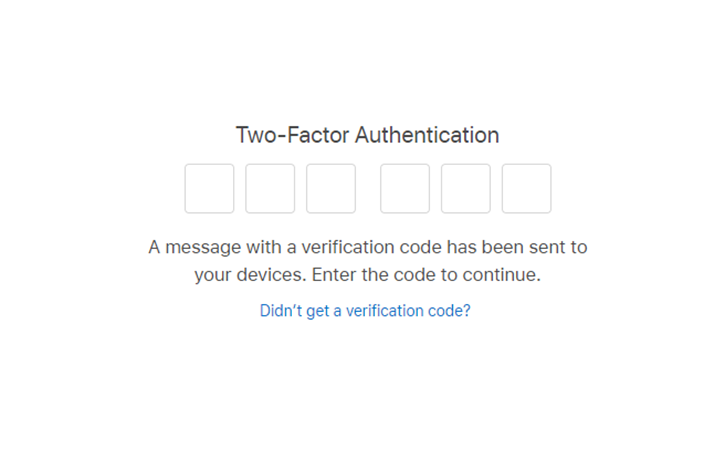
- Enter your 2FA code if you have set up 2FA and click on “Trust this browser”.
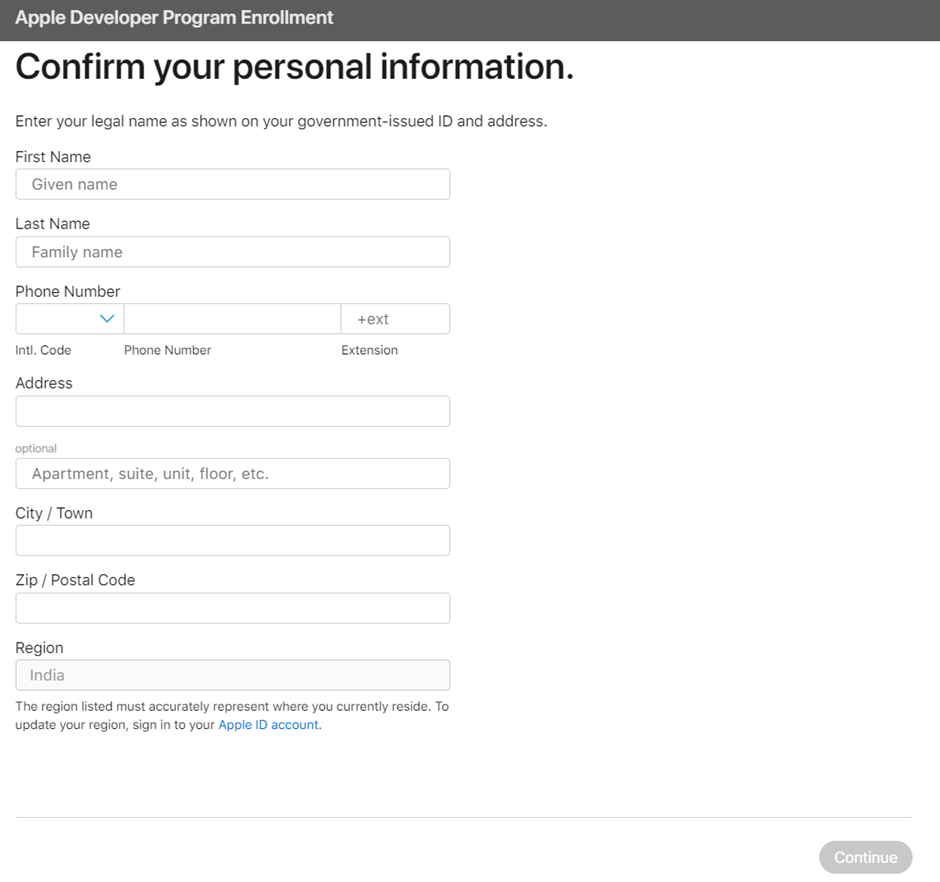
- Fill in the all the details asked and click on Continue once done.
- Select your entity type from the list of options given in the dropdown and hit continue.
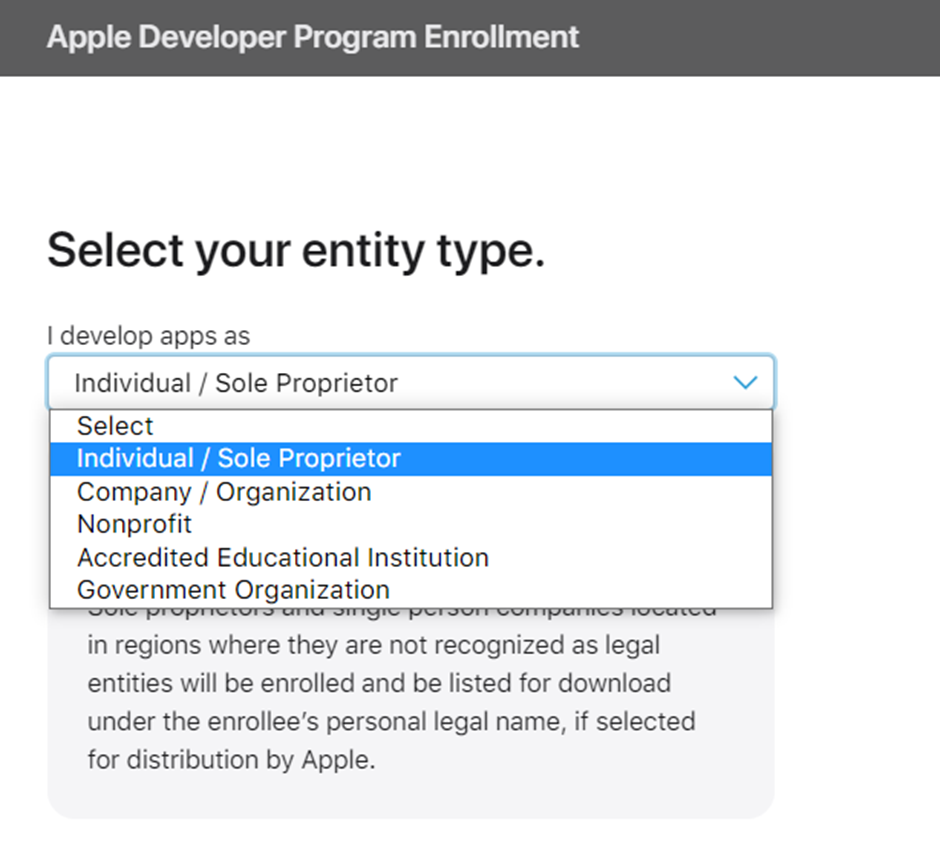
- If you go with the option Individual / Sole Proprietor, then you would not need verification but in case of Company / Organization you will need a verification certificate and a few other documentations to get through. Hit continue once your preferred option is selected.
- Review the Terms and Conditions and check the box and hit continue.

- Complete your payment by clicking on Purchase. To create an account, you will need to pay a one-off $95 registration fee. You may be asked to verify your identity using a valid ID to complete your account registration.
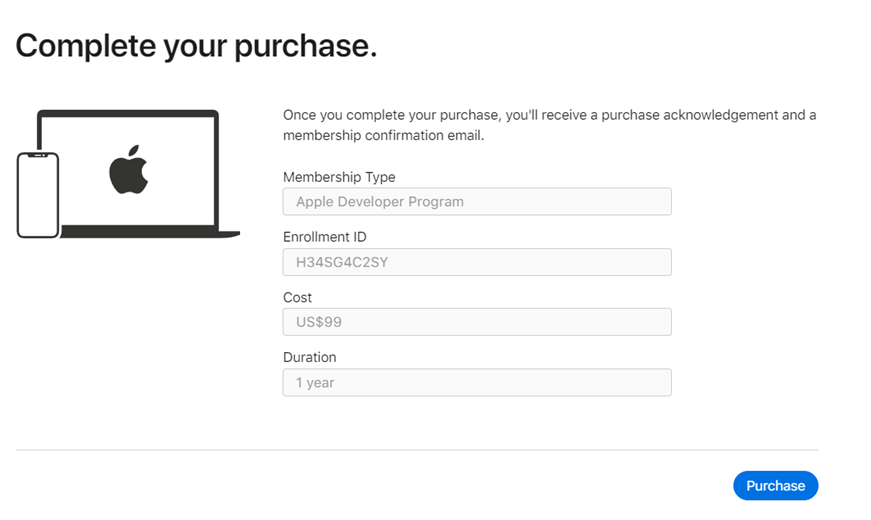
- Complete your order by filling in your card details and once the payment is done it will take some time for Apple to verify your documentation. Once done, you’ll receive an email confirming your account and you can then start developing your customized app!
