
Help Brilion Help Brilion

  • Home
  • Magazine
  • Help Center
Home / Invoices and Payments / Creating a payment link

Creating a payment link

3 views Less than a minute 0
  • To create a payment link, please go to the Customer list page. Then locate the customer by searching their name.
  • You will then need to hover your mouse over to the Action button, which is also those three vertical dots at the end of every customer row. You need to click on the credit card icon.
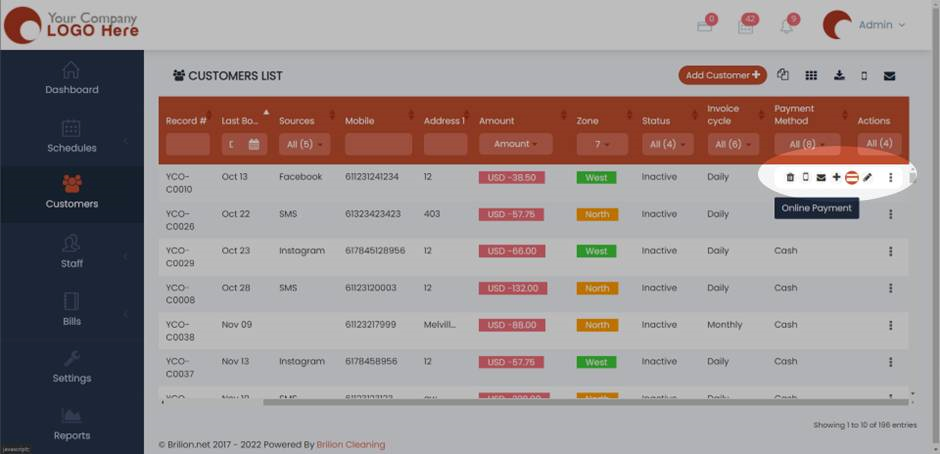
  • An outstanding amount will be pre-filled. You will be able to add the amount if needed.
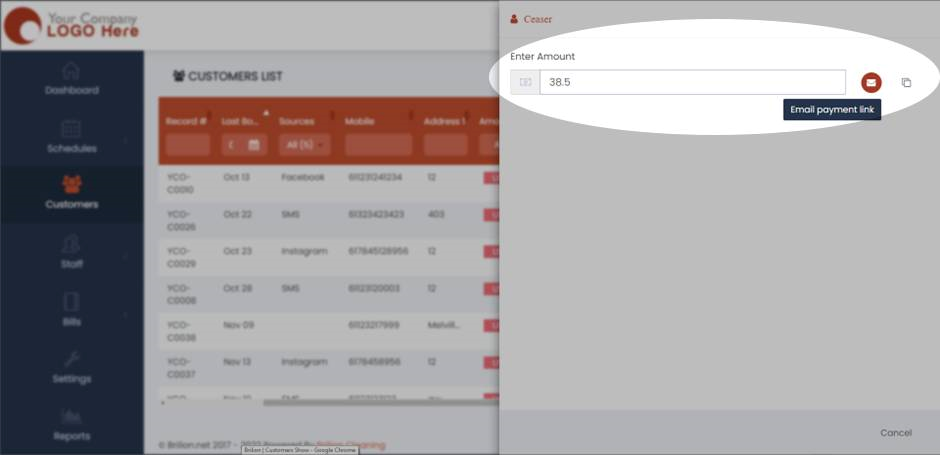
  • Once done, you can either email the payment link to the customer or copy it and send it through WhatsApp or other communication channels.
 
Invoices and Payments

About info

View all posts by info →

Related Articles

  • Deleting a receipt in case payment is not made/ Recovering an invoice
  • Viewing and sending the receipt for a customer
  • Filtering out paid and unpaid invoices
  • Creating Discount Codes for your customers

Categories

  • 14Communications
  • 8Crew App
  • 2Customer App
  • 25Getting started
  • 5Integrations
  • 9Invoices and Payments
  • 1Marketing
  • 13Online Booking
  • 29Scheduling

Most Viewed

  • Add multiple jobs for a single customer on the same day 9
  • Deleting or adjusting an invoice 7
  • Adding a note that appears on every job 7
  • Allocating Driver Zones 5
  • Adding a crew member and generating password for the crew app 4

Most Liked

© 2024 , Brilion Technologies | All Rights Reserved | Privacy Policy | Terms & Conditions