
Help Brilion Help Brilion

  • Home
  • Magazine
  • Help Center
Home / Getting started, Online Booking, Scheduling / Setting time slots for online booking

Setting time slots for online booking

4 views Less than a minute 0
  • To turn on time slots for your online bookings, please head over to Settings > Services and select the service that you want to enable time slots for.
  • Scroll down and you’ll find “Time slots (optional)” option present. Enable it by toggling the button on the left side.
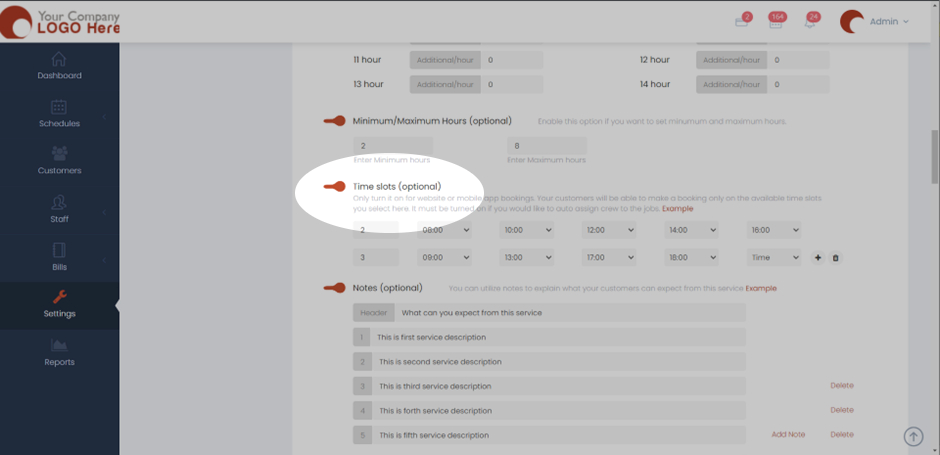
  • Only turn it on for website or mobile app bookings. Your customers will be able to make a booking only on the available time slots you select here. It must be turned on if you would like to auto assign crew to the jobs.
  • You will have to specify in the first box, the number of hours of the booking and accordingly at what time slots those bookings should get scheduled for.
  • Once done, hit Save and now the time slots will be available to the customers based on the number of hours they’ve booked for.
 
Getting startedOnline BookingScheduling

About info

View all posts by info →

Related Articles

  • Marking a customer active/inactive
  • Enabling today and future days booking notifications for your crews
  • Deleting a receipt in case payment is not made/ Recovering an invoice
  • Editing customer details for existing customers

Categories

  • 14Communications
  • 8Crew App
  • 2Customer App
  • 25Getting started
  • 5Integrations
  • 9Invoices and Payments
  • 1Marketing
  • 13Online Booking
  • 29Scheduling

Most Viewed

  • Add multiple jobs for a single customer on the same day 8
  • Deleting or adjusting an invoice 6
  • Adding a note that appears on every job 6
  • Allocating Driver Zones 4
  • Setting time slots for online booking 4

Most Liked

© 2024 , Brilion Technologies | All Rights Reserved | Privacy Policy | Terms & Conditions